

flexile-white-logo
a
M

Integ CRM Overview

A complete walkthrough that shows how the platform works

Follow Us

Choose Your Plan

Save time because the right plan keeps your pipeline, follow up, and client management running smoothly.

One Pro

For solo business owners, freelancers, and independent professionals.

CRM Pro

For growing businesses that need automation, team workflows, and stronger follow up.

CRM Ultimate

For businesses that want the full suite, advanced automation, and Exclusive tools to scale faster.

Key Features

  • Guaranteed follow up systems that help You respond Now, stay consistent, and win more deals.
  • Pipelines and Automated Follow Up
  • Never miss the next step.
  • Calendar and Booking
  • Forms and Funnels
  • Let clients schedule instantly.
  • Capture new leads with high converting pages.
  • SMS, Email, and WhatsApp
  • Reach leads faster and build trust.
  • Payments and Invoices
  • Get paid fast and keep everything organized.

Support and Resources

Free resources, Exclusive templates, and Limited onboarding spots each month to help You go live faster.

  • Free Onboarding
  • Guided setup to launch quickly.
  • Never miss the next step.
  • Template Library
  • Funnels, messages, and workflows ready to use.

Help Center

Quick tutorials and how to guides

Contact Support

Talk to an Expert

How to create Equipments?

How to create Equipments?

1. Access Calendar Settings and Enable Equipment:

  • Go to your account and navigate to Calendars > Calendar Settings.
  • Under Preferences > In-App Preferences, toggle on Rooms and Equipment.

2. Create an Equipment:

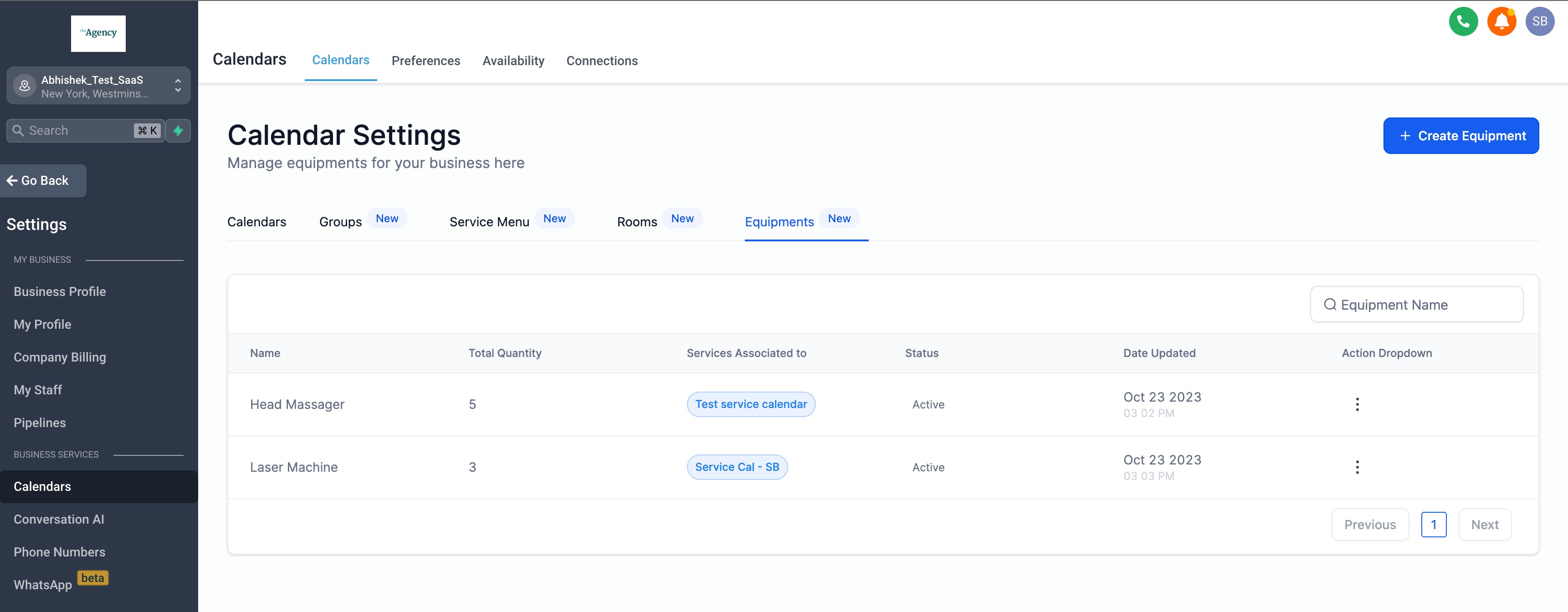
  • Once you've enabled the feature, a new 'Equipments' tab will appear.
  • Under the 'Equipment' tab > Click on Create Equipment. 
3. Provide Equipment Details:

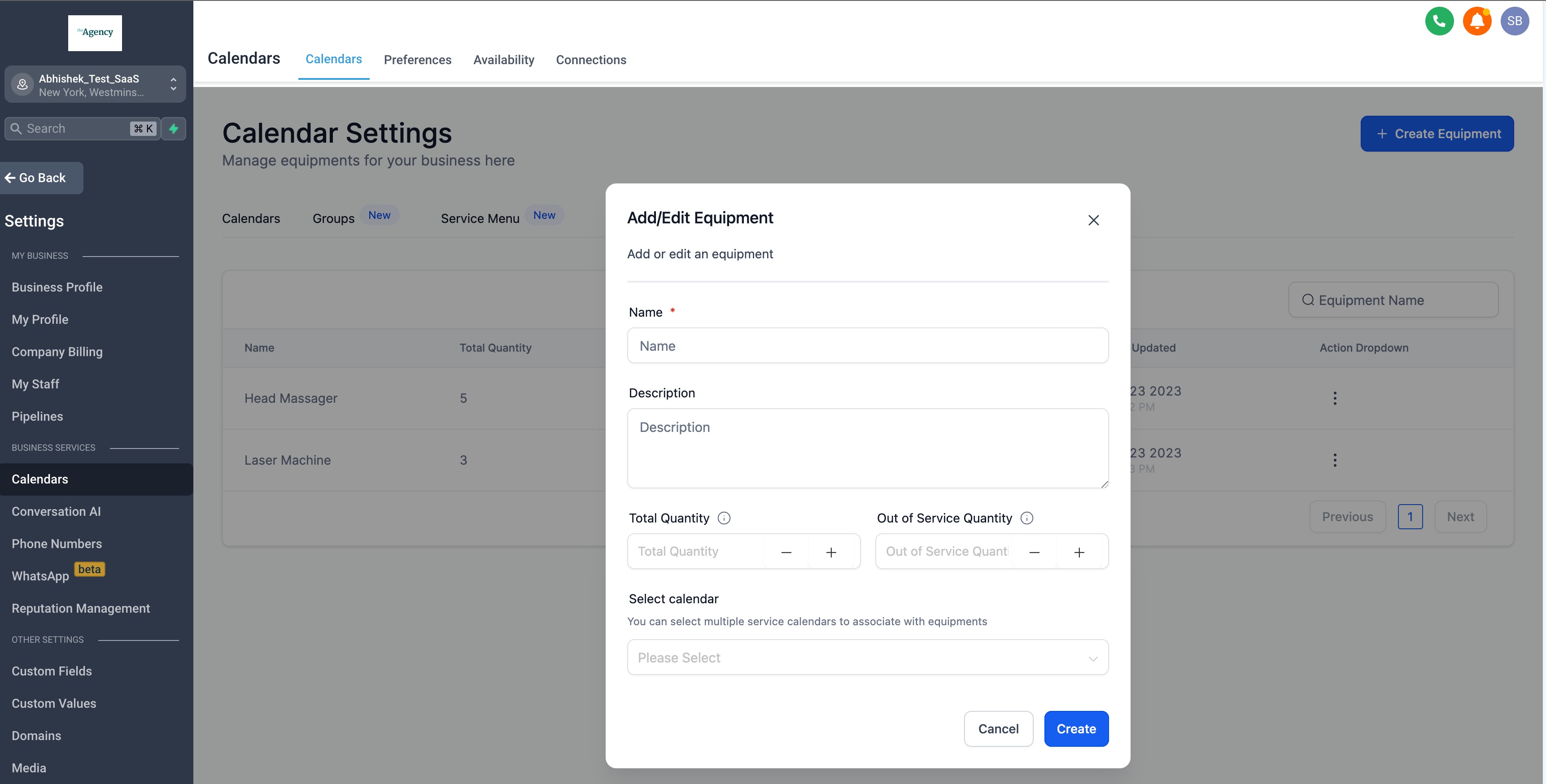
To set up equipment, enter the following details:

  • Equipment Name: Assign a unique name to the equipment.
  • Description: Provide a brief description to clarify the equipment's purpose.
  • Total Quantity: Specify the total number of available equipment units.
  • Out-of-Service Quantity: Enter the count of equipment units that are currently non-functional, require repair, or are out of service.
  • Select Calendar: Choose the calendars you wish to associate with this equipment.

Note: You can only link one equipment to each calendar. For example, if you have a 'Laser Machine', it can be connected to multiple calendars, but each calendar can only have one equipment, here 'Laser Machine' associated with it.
Additional Information

1. Rooms and Equipment Details:

  • Find your rooms and equipment details within the appointment modal - details view.
  • This ensures you can quickly identify which room has been assigned to a particular appointment and which equipment is used or booked in conjunction with the appointment.
  • This feature simplifies the management of appointments, making it more informative and streamlined.

Stay Ahead with INTEG CRM Insights

Subscribe to our blog and get the latest insights on enhancing customer relationships and boosting business efficiency with CRM technology. Don’t miss out on expert tips, industry news, and success strategies from INTEG CRM. Join our community today to keep your business at the forefront of innovation!

Visit Our Blog

Stay Up to Date With The Latest News & Updates

Access Premium Content

Unlock exclusive content tailored for advanced CRM users by subscribing to our premium insights. Each week, we dive deeper into strategies that drive business growth, enhance customer relationships, and optimize operational efficiency. 

Join Our Newsletter

Stay ahead of the curve with exclusive insights and tips delivered straight to your inbox! Join our newsletter today to receive the latest trends, updates, and special offers.

Follow Us