

Overview
Connecting your Outlook Calendar helps you sync your bookings between your Outlook Calendar and the system. This ensures correct availability, prevents double bookings, and facilitates seamless scheduling and booking management.
Prerequisites
You need access to your Outlook account associated with the Outlook Calendar you want to connect.
Check if writer's access is required:
- If you want to add events created in the system to your Outlook Calendar, the writer's access is necessary for the calendar.
- If you want to fetch all your events from your Outlook Calendar to the system, read-only access will suffice.
Getting Started
Step 1: How to Connect Outlook Calendar?
To connect to Outlook Calendar, follow these steps:
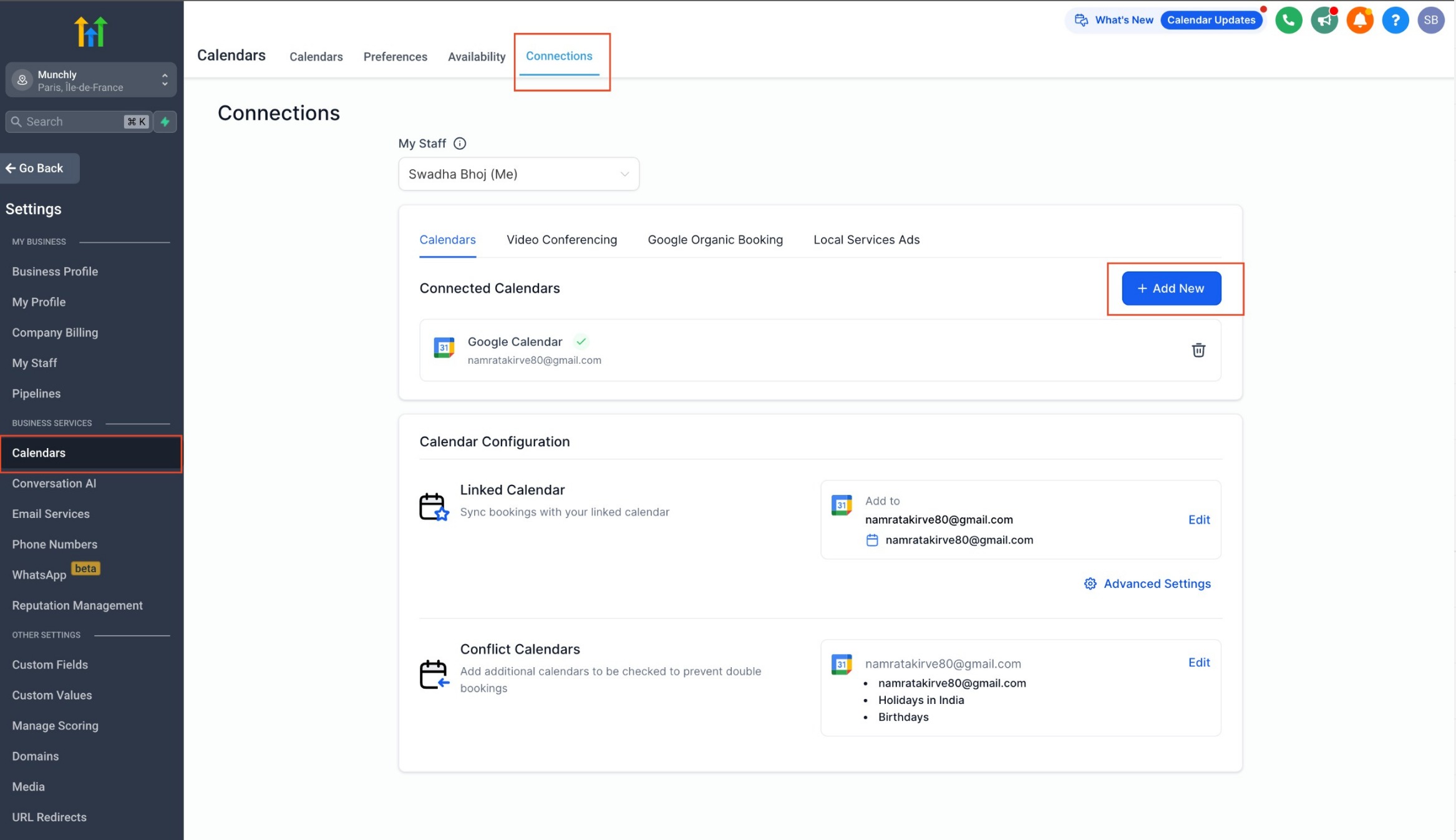
1. Navigate to 'Calendars' > 'Calendar Settings' > 'Connections.'
2. Click on 'Add New.'
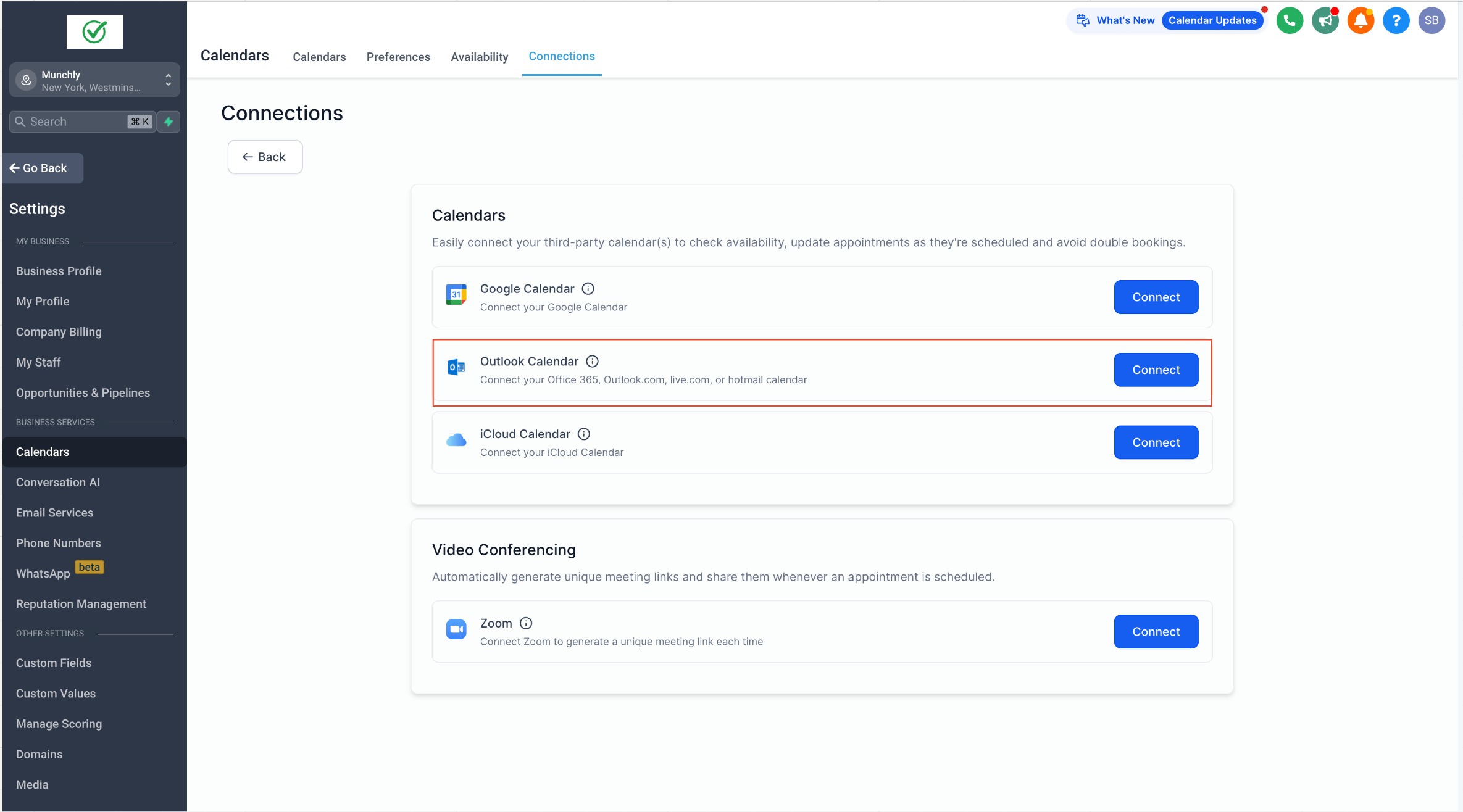
3. Choose 'Outlook Calendar' and click 'Connect.'
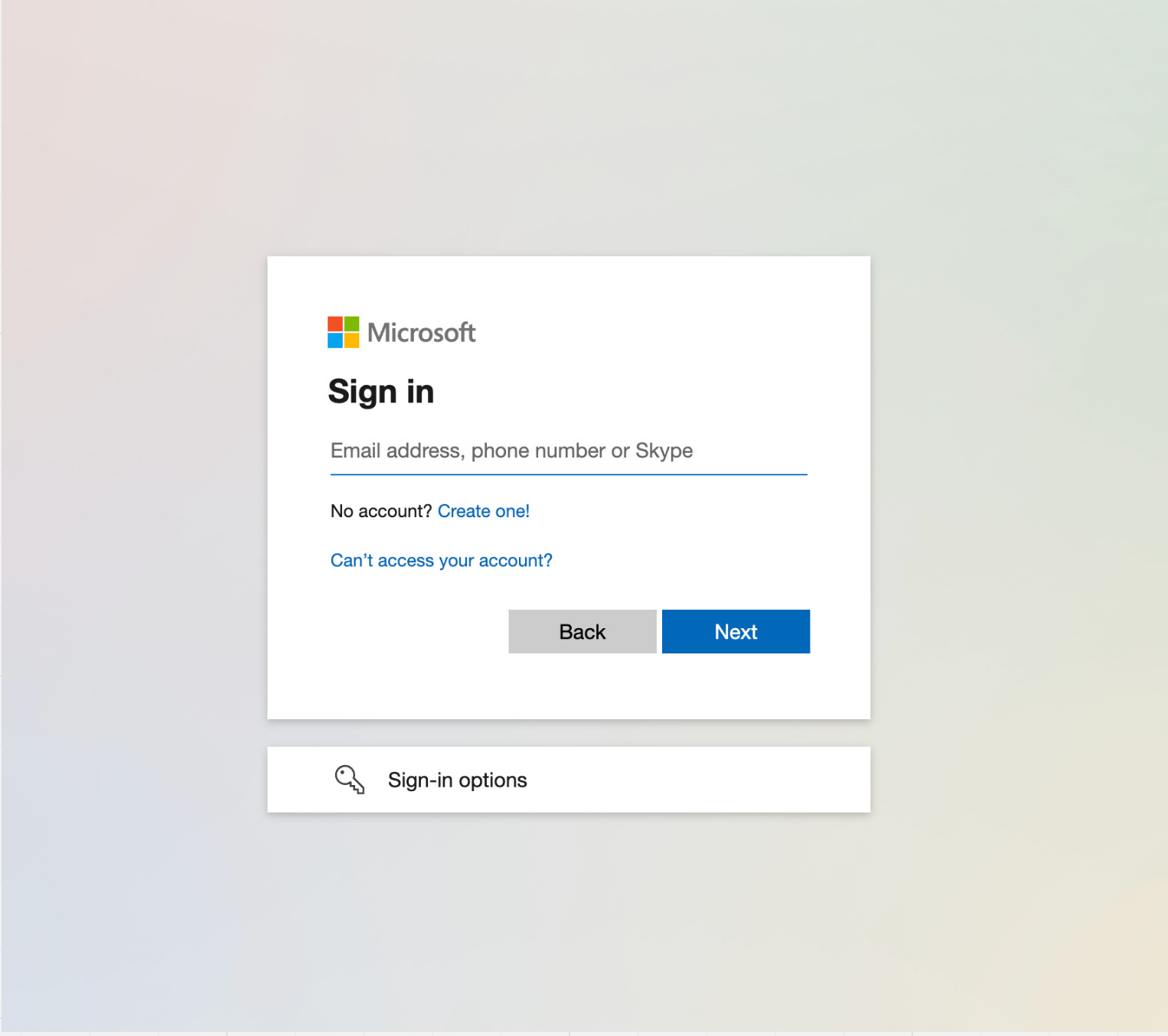
4. Complete the authentication process by signing into your Outlook account and granting the necessary access.

Step 2: Calendar Configuration
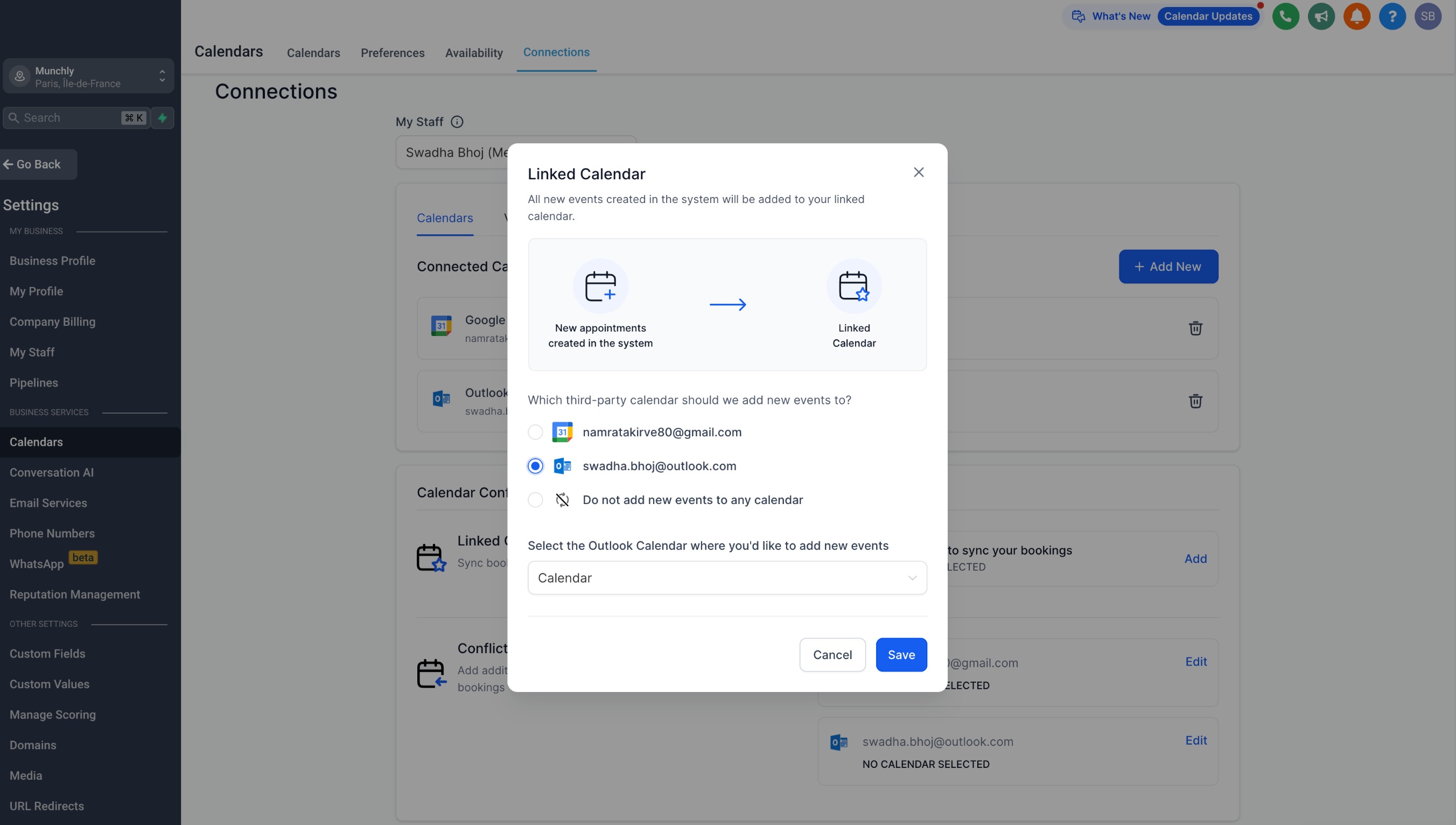
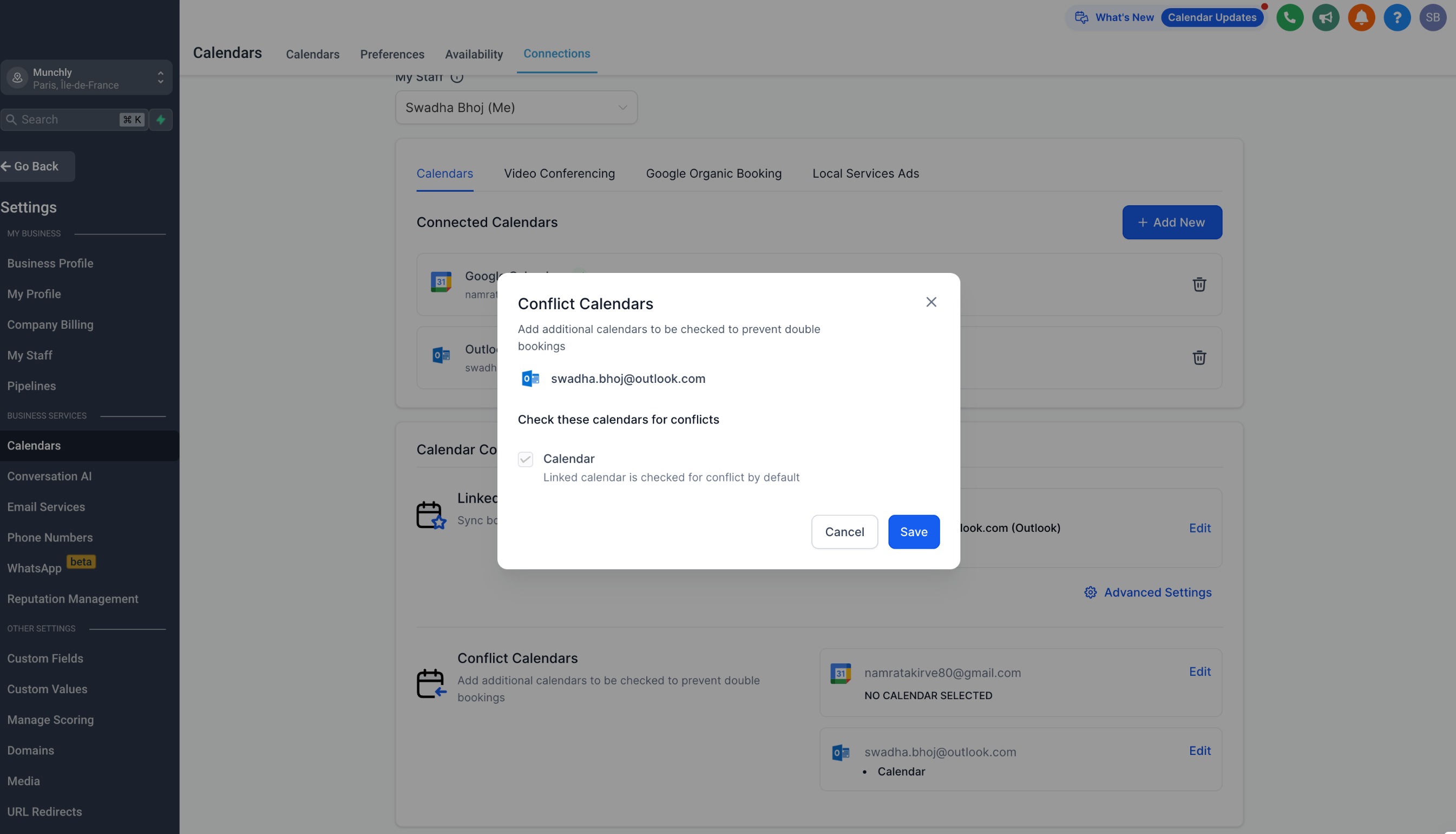
Once your Outlook calendar is successfully connected, you need to complete your calendar configuration by selecting your linked calendar and conflict calendar.

What is Calendar Configuration?
Calendar configuration involves two settings: Linked Calendar & Conflict Calendar.
Linked Calendar:
All new events created in the system will be added to your linked calendar. For example, any new event created in the system will sync to your linked calendar, allowing you to view it directly on this third-party calendar (e.g., Outlook).
Note:
Writer's access is required for the user to select a calendar as a linked calendar.
The linked calendar is, by default, added to the conflict calendar. This means any event created on the third-party linked calendar will be fetched in the system, and any event created in the system will be pushed to the third-party linked calendar.
You can set your Sync Preferences from the Advanced Settings.
Conflict Calendar:
Events from third-party calendars added as conflict calendars are synced to the system, blocking your availability for the event's duration.
The availability is blocked only if the event is marked as 'BUSY' in the third-party calendar. For events marked as 'FREE', the events are fetched in the system, but the availability remains open.
This ensures accurate availability and avoids double bookings. You can add multiple calendars to be checked to prevent double bookings.
FAQs
Q: Does Outlook integration work with event calendars?
Answer: No, Outlook integration does not work with event calendars. Event calendars support only Google Integration.


