

What is Booking Redirect?
Google Booking Redirect, a.k.a Google Organic Booking, refers to customers finding and booking services directly from a business's Google My Business (GMB) listing without any involvement of third-party booking platforms or paid advertisements. When users search for a specific service or company on Google, and the business has enabled booking functionality through their GMB profile, customers can book appointments or services directly from the search results page or the business's Google Maps listing.
This feature allows businesses to streamline the booking process for potential customers, providing a convenient way for users to schedule appointments without visiting the business's website or using external booking platforms. Google Organic Booking helps companies to attract and convert local customers by making the booking experience seamless and accessible directly from Google search.
Who is this applicable to?
This feature can be used by users who have businesses in the US
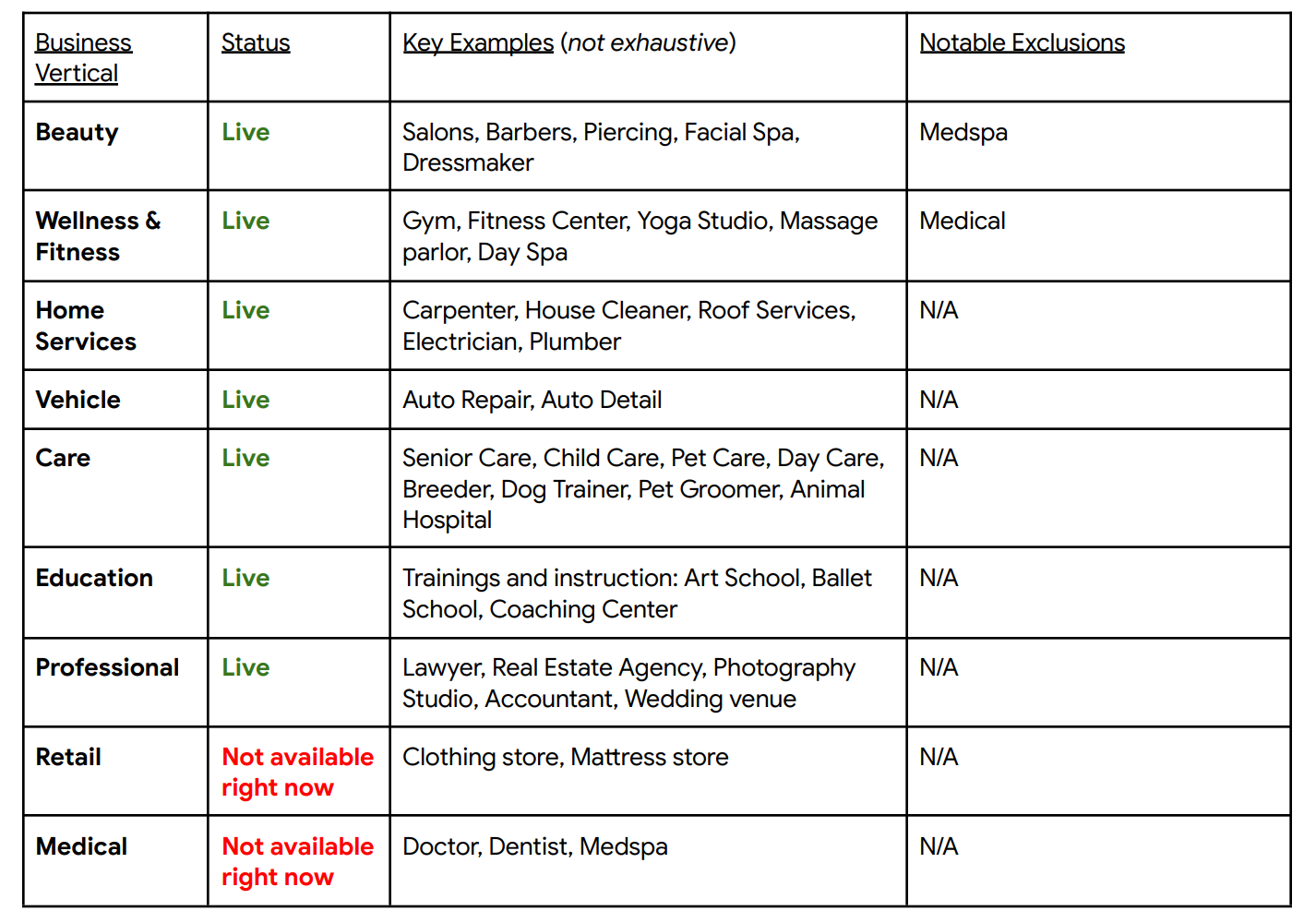
Following are the Business verticals this is applicable for, with some exclusions
What do you need?
- You must have a Google Business Profile for this feature
- Business should be in the United States
Uploading Feeds
Go to Calendars Settings > Connections > Organic Booking Redirect
Step 1: Primary Action Feed (Book Online Button)
- Create a Booking Page: Set up a Service Menu or a Group of services. This detailed view helps customers choose services easily.
- Upload the Primary Action Feed: This link lets customers book services directly. Ensure it’s active and user-friendly.
The Primary Feed action link would be added to the Book Online button as shown in the below example
Step 2: Individual Service Booking
- List Your Services: Any calendar which you have created can be used here, which would show up under the services tab on Google
- Upload Individual Service Feeds: If you want certain calendars (services) shown, you can select them in the Individual Service Booking dropdown.
Ensure the Calendars have Description: Please ensure that the calendars you are selecting have a clear description matching to the Name of the Calendar / Service. This is crucial to get these validated on Google's end.
It usually takes 1-2 weeks for the feeds and profiles to be verified for the first time.
The Calendars you upload in the Service Feed will appear on Google, similar to the example below.

Tips for Success:
- Clear Descriptions: Make sure your services and calendars have clear, concise descriptions that match their names.
- Link Accuracy: Please ensure that you are selecting only the service menu or group in the Primary Action Feed and Individual calendars. Service Links
- Regular Updates: Keep your information current. Update your offerings and descriptions as needed for accuracy.
How to Disable Integration?
Users can disable Google Organic Booking with a simple toggle in Calendar Settings. By disabling the integration, the system refrains from uploading any feed to Google. Consequently, end customers won't find the option to discover and book services directly from a business's Google My Business (GMB) listing.
To disable the integration:
- Navigate to Calendar Settings > Connections Tab
- In the Account Connections tab, locate the Google Organic Booking section.
- Toggle the switch to disable Google Organic Booking.


